
Two PDFs can look identical on screen and differ in size by a factor of fifty. One is 400 KB, the other is 20 MB, and nothing about the page tells you why.
The answer is almost always in what the file is storing rather than what it is showing. Understanding that difference is what lets you shrink a PDF sensibly, and, just as usefully, recognize when a file is already about as small as it is going to get.
What a PDF is actually storing
A PDF is a container of numbered objects. Some objects are small dictionaries describing structure, such as which pages exist and in what order. Others are streams: blocks of data with a dictionary attached saying how they are encoded.
The stream is the important part, because streams are where the bulk lives and where compression happens. Each stream names one or more filters, which is the PDF specification's word for the encoding applied to its data. Decoding the filter gives back the raw content.
A typical page involves at least these pieces:
- A content stream, the drawing instructions for the page. It is a compact sequence of operators saying set this font, move to this position, show this text, draw this line. For a text page it is usually a few kilobytes.
- Font programs, embedded so the document renders the same everywhere.
- Image XObjects, one per placed image, each holding the pixel data.
- Resource dictionaries linking the page to the fonts and images it uses.
- Metadata, such as title, author, and creation date.
Since PDF 1.5, many of the small structural objects can themselves be packed into object streams and compressed together, and the file's cross-reference table can be stored as a compressed stream rather than plain text. That mostly matters for files with many small objects, and it is one of the ways a file gets smaller without a single visible pixel changing.
Lossless and lossy, and where each belongs
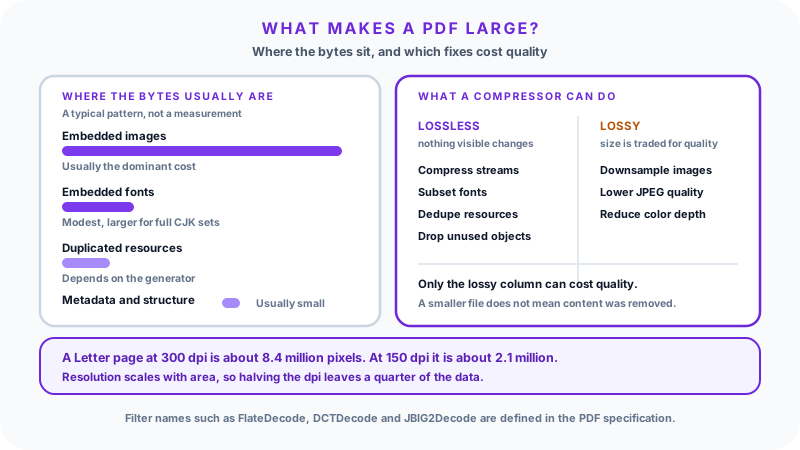
Lossless compression means decoding returns exactly the original bytes. FlateDecode, the deflate algorithm also used in ZIP, is the general-purpose lossless filter in PDF, and LZWDecode is an older alternative. Text content streams, font programs, vector graphics, and structural data are compressed losslessly, because a text page with one byte altered is a corrupted page, not a slightly blurrier one.
Lossy compression discards detail that is expected to be hard to notice, and cannot be undone. In PDF this is essentially a story about images. DCTDecode is JPEG. JPXDecode is JPEG 2000, which supports both lossy and lossless modes. JBIG2Decode handles bilevel (pure black and white) images and also has lossy and lossless modes. CCITTFaxDecode is the lossless bilevel encoding inherited from fax machines.
A few filters are not compression at all. ASCIIHexDecode and ASCII85Decode re-encode binary data as printable characters, which makes the file larger. They exist for transport, not for size.
The practical rule follows from the list: text and vectors get lossless treatment, images are where a size-versus-quality decision actually exists.
Why images dominate, and the arithmetic behind it
A page of text stores character codes and a font. A scanned page stores a photograph of characters. That is the entire difference, and it is enormous.
Consider a US Letter page, 8.5 by 11 inches, scanned at 300 dots per inch:
2,550 x 3,300 pixels = 8,415,000 pixelsIn 24-bit color that is roughly 25 MB per page before any compression. The same page as real text, with an embedded font, is typically a few kilobytes of content stream.
Resolution scales with area, which is the detail people miss. Halving the DPI does not halve the data, it quarters it:
| Scan resolution | Pixels per Letter page | Relative data |
|---|---|---|
| 600 dpi | ~33.7 million | 4x |
| 300 dpi | ~8.4 million | 1x (baseline) |
| 150 dpi | ~2.1 million | 1/4 |
| 96 dpi | ~0.86 million | ~1/10 |
Color depth multiplies on top of that. The same 300 dpi page is about 25 MB in 24-bit color, about 8 MB in 8-bit grayscale, and about 1 MB as bilevel black and white, all before compression. This is why converting a scan of black text on white paper from color to grayscale or bilevel can be such a large win: the color information was never carrying anything.
So the levers a compressor actually pulls on images are:
- Downsampling. Fewer pixels. The most effective single change, and the one most tied to how the document will be viewed.
- Re-encoding. Applying JPEG at a lower quality setting, or a format better suited to the content.
- Color space reduction. Color to grayscale, or grayscale to bilevel where the content allows.
- Format choice. Photographic content compresses well with JPEG. Sharp-edged content such as screenshots, line art, and text-as-image does not, and shows visible artifacts around edges.
Adobe's PDF Optimizer exposes exactly these controls, which is a reasonable model for what "PDF compression" means in general.
Fonts, duplicates, and metadata
Beyond images, three smaller sources of size are worth knowing.
Embedded fonts. A PDF embeds font programs so the document renders correctly on a machine that does not have them. Subsetting keeps only the glyphs the document actually uses and discards the rest. It changes nothing about how the document looks, so it is a lossless saving in the sense that matters to a reader, though it does mean the file no longer carries a complete, reusable font. The saving is modest for a Latin document and can be substantial for one using a large CJK font, where the full character set is very large and the document may use a small fraction of it.
Duplicate resources. A generator that places the same logo on forty pages may embed forty copies of it rather than one object referenced forty times. The same goes for repeated fonts and repeated background graphics. Deduplicating these removes redundancy only, so nothing visible is lost. This is a common and entirely invisible source of savings.
Metadata and unused objects. Document metadata, unreferenced objects left behind by editing, and old revisions retained by incremental saves all take space. Metadata is usually small, so stripping it rarely rescues a large file, and it is worth being deliberate: document title and structure tags are what screen readers and search rely on. Strip identifying metadata when privacy is the goal, not as a routine size measure.
Why the same page can be a very different size
A mostly-text PDF exported from a word processor. Content streams plus subset fonts, all losslessly compressed. Often already close to optimal. Running a compressor over it might save a few percent by repacking objects, and there is no image to downsample.
A presentation exported to PDF. A mixed case. Slide backgrounds, stock photography, and logos are raster images, often embedded at full resolution regardless of the size they are displayed at. A photo shown two inches wide but embedded at 3,000 pixels across is carrying detail no viewer will ever see. Downsampling to the displayed size is a large, invisible saving. The text on the slides, meanwhile, barely contributes.
A scanned document. Every page is an image, so file size is almost entirely a resolution and color-depth question. These files typically compress the most dramatically, and are also where over-compression is most visible, because the thing being degraded is the legibility of text.
Why compression sometimes barely helps
A compressor is not adding magic; it is finding redundancy or discarding detail. When neither is available, little happens.
The images are already JPEG. Most PDFs already store photographs with DCTDecode. Deflate over already-compressed JPEG data saves close to nothing, because JPEG has already removed the redundancy deflate looks for. Real savings require re-encoding at lower quality or downsampling, both of which cost quality.
The file is mostly text and already optimized. There is very little left to squeeze.
The images are already at a sensible resolution. If a scan is at 150 dpi grayscale, downsampling further starts to cost readability quickly.
The file is large for a structural reason. Embedded attachments, a large CJK font set, retained revision history from incremental saves, or hundreds of pages. A generic compression pass may not touch these.
When a tool reports a 3% reduction, the usual explanation is not that the tool is weak. It is that the file was already close to what its content requires.
The tradeoff, and what repeated compression costs
Every lossy step is permanent. Detail removed at quality 60 cannot be recovered by saving at quality 95 afterward; that only produces a larger file storing the same degraded image.
This is why repeatedly compressing the same document degrades it. Each lossy pass re-encodes an image that already carries artifacts from the previous pass, and the artifacts compound. A file that has been emailed, compressed by one person, forwarded, compressed by another, and compressed again for an upload limit can end up visibly worse than a single aggressive pass would have produced.
The habit that avoids this is simple: keep the original and compress from it each time, rather than compressing the compressed copy. If a file must fit a 5 MB upload limit, go back to the master and produce a 5 MB version once.
A smaller PDF has not necessarily lost anything
This point is worth stating plainly, because "smaller must mean worse" is a common and incorrect assumption.
Several ways a PDF gets smaller involve no loss of anything a reader would notice:
- Compressing streams that were left uncompressed by the generator
- Packing many small objects into object streams
- Subsetting fonts to the glyphs actually used
- Deduplicating a resource embedded many times over
- Discarding orphaned objects and retained revision history
- Downsampling an image from 3,000 pixels wide to the 600 pixels at which it is displayed
Only the last of these touches image data at all, and even then the removed pixels were never being shown. A genuine quality loss requires re-encoding at lower quality, downsampling below the display or print resolution, or reducing color depth where the color mattered. If you want to know which happened, compare the output on screen at the zoom level you will actually use.
Choosing a level without guessing
Rather than memorizing settings, work backwards from the destination.
Screen and email. The reader is looking at a display, so image detail beyond what the display can show is wasted. Moderate downsampling and moderate JPEG quality are usually invisible here.
Print. Print resolution is much higher than screen resolution, so downsampling that looks fine on a monitor can look poor on paper. Keep image resolution higher and quality settings conservative.
Fine detail. Maps, engineering drawings, tables of small figures, and anything with hairlines or small text rendered as an image need more care than a photograph does. Lossy artifacts cluster around sharp edges, which is precisely where the information is.
Text recognition. If a scan needs to be run through OCR, aggressive downsampling works against it, since character shapes have to stay distinct enough to identify.
Archival. Keep a full-quality master. Distribute compressed copies from it.
The reliable test is not the percentage in the results panel. It is opening the output, zooming to the level a reader will use, and checking the parts that actually carry meaning: the small print, the figures in the table, the fine lines in the diagram.
Common mistakes
Compressing the compressed copy. Lossy loss compounds. Always go back to the original.
Using screen settings for print. Images that look clean at 100% on a monitor can look soft or blocky on paper.
Treating percentage reduction as the score. A 90% reduction that makes a contract's figures ambiguous is a failure. A 20% reduction that keeps it legible is a success.
Expecting large savings from a text PDF. There is not much there to compress. The size is what the content requires.
Stripping metadata reflexively. It rarely saves meaningful space, and document structure and tagging support accessibility and search.
Using JPEG for screenshots and line art. Sharp edges are exactly what JPEG handles worst. Lossless encodings suit that content better.
The BlinkCalc PDF tools
BlinkCalc's Compress PDF page reads a PDF locally in the browser and rebuilds it using lossless structural optimization.
It is worth being precise about what that does and does not do. The size of the generated file is measured, and any saving reported comes only from the actual original and generated sizes. The optimized download is offered only when the generated PDF is genuinely smaller; when the available lossless optimization cannot reduce the file, the page says so instead of claiming a saving. Pages are not rasterized and images are not recompressed, so an already optimized or image-heavy PDF may see little or no reduction.
The other PDF tools do complete their operations: Merge PDF, Split PDF, and PDF to Word.
FAQ
Why is my PDF so large? Almost always embedded raster images: a scan, a photo-heavy presentation, or images embedded at far higher resolution than they are displayed at. Check whether the document is real text or a picture of text, because that single distinction usually explains the size.
Does PDF compression lose quality? It depends which mechanism ran. Lossless steps such as stream compression, font subsetting, and deduplication lose nothing visible. Lossy image re-encoding and downsampling do trade quality for size, though at moderate settings the difference is often hard to see on screen.
Can I compress a PDF without losing readability? Usually yes, especially if the file has obvious slack such as full-resolution images shown small, or a color scan of a black-and-white document. Check the output at the zoom level a reader will use rather than trusting the reduction percentage.
Can I recover quality from an over-compressed PDF? No. Lossy compression is one-way. Re-saving at a higher quality only produces a larger file containing the same degraded images. This is the argument for keeping an original.
Why is the same document a different size from different software? The PDF specification allows many valid ways to represent the same page. Generators differ in whether they compress streams, subset fonts, deduplicate resources, use object streams, and how they handle images. Same appearance, different file.
Is JPEG or PNG better for images going into a PDF? JPEG suits photographs, where its lossy model matches how the content is perceived. Lossless encodings suit screenshots, diagrams, and line art, where JPEG's artifacts cluster around the sharp edges that carry the information.
Does removing metadata make a PDF much smaller? Rarely. Metadata is typically small relative to images and fonts. Remove it for privacy reasons if you have them, but do not expect it to rescue a large file, and be aware that structure and tagging information supports accessibility.
Sources
- PDF Association, Errata for PDF specifications, ISO 32000-2:2020, Clause 7 (Syntax)
- PDF Association, ISO 32000-2
- Adobe, PDF Optimizer settings
Related Articles
Final Thoughts
PDF compression is mostly a question about images, with smaller structural wins from fonts, duplicate resources, and how the file's objects are packed. Once you can tell whether a document is text or pictures of text, and whether its images carry more resolution than they display, the size of almost any PDF stops being mysterious.
Work backwards from where the file is going, keep the original, and judge the result by looking at the parts that carry meaning rather than by the percentage a tool reports.