
The useful question is not "which format is best". It is what does this file actually store, and what does the next person need to do with it?
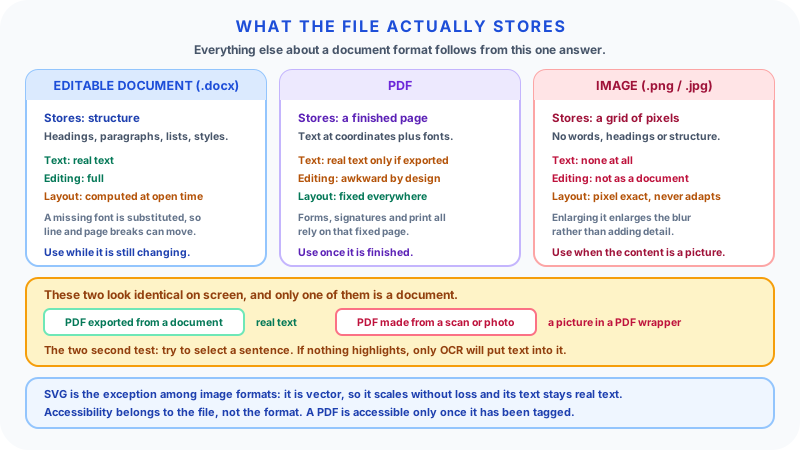
A Word document stores content as structure: paragraphs, headings, lists, tables, styles. A PDF stores a finished page: text placed at coordinates, fonts embedded, graphics drawn. An image stores a grid of pixels and nothing else. Those three answers decide everything downstream, and most format regrets come from picking one whose next step does not match.
Key Takeaways
- Word (.docx) stores structure. That is why it edits well, and why its page layout can shift on a different machine.
- PDF stores a finished page. Layout travels intact; editing is awkward by design.
- An image stores pixels. There is no text inside it, searchable or otherwise, until OCR puts some there.
- "PDF" does not mean "searchable". A scanned page saved as a PDF is a picture in a PDF wrapper.
- Accessibility is a property of the file, not the format. A PDF is accessible only if it has been tagged; an image of text is not accessible at all.
- Convert in the direction of the next step, and keep the editable original.
What Each Format Actually Stores
Word (.docx) is a structured document. The file records that a line is a Heading 2, that a block is a bulleted list, that a run of text is bold. Where the page break falls is computed at open time by whatever application is rendering it, using the fonts installed on that machine. Structure is stored; pagination is derived.
PDF is a fixed-layout page description. Text is placed at coordinates, fonts are normally embedded in the file, and the page is drawn the same way everywhere. The format is an ISO standard (ISO 32000), which gives every implementation a shared specification; a PDF from 2005 still opens today because PDF readers are built to stay backward compatible with earlier versions of the format.
Images (JPEG, PNG, WebP) store a rectangular grid of coloured pixels. A photograph of a contract and a rendered chart are the same kind of object to the file format: a picture. There are no paragraphs, no headings, no words. SVG is the exception among common image formats: it is a vector format whose text really is text, which is why it stays sharp at any size and why its labels can be selected and searched.
The Distinction That Causes The Most Trouble
Three files can look identical on screen and behave completely differently:
- A PDF exported from Word. The text is real text. You can select it, search it, and copy it out.
- A PDF made from a scan or a photo. Each page is a single image inside a PDF container. Selecting text does nothing, because there is no text.
- A PNG screenshot of the same page. Same situation, without the container.
Files 2 and 3 are pictures. Search engines, screen readers, copy and paste, redaction tools and text extraction all fail on them in the same way, and the failure is silent: the document opens, it looks fine, and nothing can read it.
Optical character recognition is what closes the gap. OCR analyses the picture, recognises the shapes as characters, and writes a text layer behind the image, which is what makes a scanned PDF searchable and selectable rather than merely visible (Adobe). The result is a best-effort transcription, not a guarantee: unusual fonts, handwriting, low-resolution scans, tables and multi-column layouts all cost accuracy, so anything consequential still needs proofreading.
The quickest test on any document: try to select a sentence. If the cursor sweeps the page without highlighting anything, you have a picture.
Decision Table
| If you need to... | Use | Why |
|---|---|---|
| Keep editing it | Word (.docx) | Structure is preserved and directly editable |
| Send a final version | Layout and fonts travel with the file | |
| Guarantee it prints as designed | Embedded fonts, fixed page geometry | |
| Let people fill in fields | Interactive form fields are part of the format | |
| Collaborate with comments and tracked changes | Word (.docx) | Built for review cycles |
| Keep text searchable and copyable | Word or a text-based PDF | Both store real text |
| Publish a photo or screenshot | JPEG or PNG | Pixels are the content |
| Show a logo, icon or diagram at any size | SVG | Vector, tiny, text stays text |
| Archive for the long term | PDF/A | ISO archival profile, self-contained |
| Meet accessibility requirements | Word with real styles, or a tagged PDF | Structure is what assistive technology reads |
Editability
Word is the only one of the three built for editing. Headings, styles, tracked changes, comments and templates all exist because the file stores what things are, not just where they sit.
PDF editing is possible in modern editors, but it is surgery on a finished page: moving a paragraph does not reflow the ones below it, and swapping a font can fail outright if the replacement is not embedded. For anything beyond a typo, edit the source document and re-export.
Images cannot be edited as documents at all. You can paint over pixels; you cannot rewrite a sentence. Round-tripping through OCR to recover editable text loses formatting and introduces transcription errors, so it is a recovery route, not a workflow.
The practical rule: keep the editable original. A PDF converted to Word and back to PDF drifts a little each cycle. If the .docx still exists, that is where the edit belongs.
Layout Consistency
PDFs render consistently because the page is already composed and the fonts usually travel inside the file.
Word documents are more variable, and the reason is specific rather than mysterious: fonts. If the font a document uses is not installed on the reader's machine, the application substitutes another, and substituted fonts have different widths. Line breaks move, then page breaks move, then a table that fitted on one page no longer does. Microsoft's own guidance is to embed fonts so that "the fonts, layout, and styling of the document won't change" for recipients who do not have them (Microsoft). Even embedded, other variables remain: printer drivers, default paper size, application version, and whether the file is opened in Word, Google Docs or LibreOffice.
So "Word looks the same everywhere" is not true, and it is not a small effect. If exact appearance matters, send a PDF.
Images are pixel-exact by definition, which is a different property from layout consistency. The pixels never move, but they also never adapt: a screenshot of a page is fixed at whatever size it was captured, and enlarging it just enlarges the blur.
Text, Search and Machine Readability
This is where formats differ most and where the differences are least visible.
- Word: text is text. Searchable, indexable, extractable.
- Text-based PDF: text is text, positioned on a page. Searchable and extractable, though extraction can return an odd reading order in multi-column layouts, because the file records where each fragment sits rather than how it should be read aloud.
- Scanned or image-only PDF: no text at all until OCR adds a layer.
- Raster images: no text, ever, without OCR.
- SVG: text elements are real text.
The consequences are bigger than search. Full-text indexing, redaction (blacking out a picture of a word does not remove any word, because there was never a word to remove), automated data extraction, translation, and copy and paste all depend on machine-readable text. If a document's content will ever need to be processed rather than only looked at, it needs to be one of the formats above that stores text.
Accessibility
Accessibility is a property of an individual file, not of the format it uses. Two PDFs can score very differently.
Images of text are the clearest case. WCAG's Success Criterion 1.4.5 asks authors to use real text instead of images of text wherever the presentation can be achieved with text, because people cannot change the font, size, spacing or colours of text that lives inside an image (W3C). Alt text describes an image; it does not make a page of text readable. An image is not a substitute for an accessible document.
A PDF is accessible when it is tagged. Tags carry the semantic structure that assistive technology needs: which text is a heading, what order the content is read in, which cells are table headers, what an image depicts. ISO 14289-1, better known as PDF/UA, is the standard that requires this, and it is explicit that conformance alone does not guarantee an accessible document, since things like colour contrast still have to be right (PDF Association). Tagging is not automatic. It comes from exporting properly from a source document that used real heading styles, or from remediating the PDF afterwards, which is slower.
Word is accessible when it is structured. Real heading styles rather than bold text, alt text on images, header rows on tables, meaningful link text. Do this in the source and a well-exported PDF inherits it.
The workflow that actually works: structure the .docx, export to a tagged PDF, then check the result. The workflow that fails: format visually, export, then try to add meaning back afterwards.
File Size
Sizes vary with content, but the ordering is stable for a page of ordinary business text:
- A .docx of a few text pages is typically in the tens of kilobytes. The format is zipped XML, so text compresses well and size is driven almost entirely by embedded images.
- A text-based PDF is usually similar or moderately larger, because fonts are embedded.
- A rendered image of the same page is far larger, because a page of text becomes a few million pixels regardless of how few words it contains.
- A 300 DPI colour scan is larger again, often by an order of magnitude over the text-based PDF.
The pattern behind those numbers: storing meaning is cheap, storing appearance is expensive. A word is a handful of bytes; a picture of that word is thousands.
This is why image-only PDFs balloon, and why OCR plus sensible compression usually shrinks a scanned archive dramatically while making it searchable at the same time. How PDF Compression Works covers what compression can and cannot remove; File Sizes: KB, MB and GB Explained covers the units.
Printing
PDF is the format print workflows expect. Page size, margins, embedded fonts and vector graphics are all fixed in the file, so what the printer produces matches what you approved.
Word prints acceptably, with the same caveat as on screen: fonts, drivers and default paper size can shift pagination between machines. For anything going to a commercial printer, send the PDF.
Images print at whatever resolution they hold. A screenshot captured at roughly 100 pixels per inch looks fine on a display and soft on paper, because print wants two to three times that density. Scaling up cannot add detail that was never captured, which is the single most common cause of a "blurry when printed" logo. Vector formats such as SVG and PDF have no resolution to run out of.
Archiving
For long-term storage, prefer formats that are open, self-contained and widely implemented.
PDF/A is the ISO profile of PDF designed for preservation. It forbids features that will not survive, such as external font references and embedded executable content, so the file stays renderable on its own. The Library of Congress's format description makes a point worth carrying into practice: PDF/A files created from scans do not necessarily support text extraction, and logical structure exists in a PDF/A file only if the creator deliberately put it there (Library of Congress). Archival and searchable are separate achievements.
Practical archive: keep the editable source, keep a text-based or OCR'd PDF as the fixed-form copy, and keep the original scan only if it is evidence in its own right.
Forms
PDF supports interactive form fields, so a recipient can type into defined boxes without disturbing the layout, and signing workflows are built around this.
A Word form is a document someone can accidentally reformat while filling in. Fine internally, unreliable at scale.
A printed, filled-in and photographed form is an image, and the answers on it are not data until someone types them out or runs OCR over them. If a form's purpose is to collect information you will process later, that round trip through paper is where the cost is.
Scanning and OCR
Scanning produces images. What happens next determines whether the result is a document or a photograph of one.
A few things worth knowing:
- Resolution: around 300 DPI is the usual working point for OCR on ordinary printed text. Lower and character shapes degrade; much higher mostly adds file size.
- Colour mode: greyscale or bitonal is smaller and often recognises better for plain text; colour matters when the colour is content.
- JPEG artefacts hurt. Lossy compression smears the sharp edges OCR depends on. Prefer a lossless or bitonal setting for text scans.
- Straight pages read better. Skew and curvature from photographing a bound book cost accuracy.
- OCR is a transcription, not a reading. Expect to check anything that matters, particularly numbers, names and tables.
Once text is recovered, PDF to Text pulls it out for indexing or reuse.
Image Formats: Choosing Among Them
When an image genuinely is the right answer, the sub-format matters:
JPEG uses lossy compression tuned for photographs, where gradual tonal variation hides the artefacts. It is the wrong choice for screenshots, diagrams and text, where sharp edges make the artefacts obvious. It also re-compresses every time it is saved, so quality degrades with each edit and save cycle.
PNG is lossless and handles flat colour, sharp edges and transparency well. It is the right default for screenshots, UI captures, diagrams and logos, and a poor one for photographs, where files get large with no visible benefit.
WebP supports both lossy and lossless modes and generally produces smaller files than JPEG or PNG at comparable quality. Browser support is broad; support outside browsers is less universal, so it is a strong web format and a weaker interchange one.
SVG is vector rather than pixel, so it scales to any size without loss, stays very small for flat graphics, and keeps its text as text. Ideal for logos, icons, charts and diagrams. Not applicable to photographs.
The two classic mistakes: saving a photograph as PNG, which produces a large file for no gain, and saving a screenshot or logo as JPEG, which produces visible fringing around every edge.
Image Converter moves between these, Image Compressor reduces size when the format is already right, and Image Resizer changes dimensions.
Conversions Worth Knowing
Word to PDF is the finalisation step. For accessibility-sensitive documents, use Word's own export (rather than print to PDF) with its accessibility tagging options enabled, since that export is what carries the tags and structure through. For a quick, clean copy of a simple document, Word to PDF converts a DOCX in your browser, keeping paragraphs, headings, bold and italic text, basic tables and page breaks; it does not produce a tagged PDF, and custom fonts, images and complex layouts are not reproduced.
PDF to Word recovers editable content from a text-based PDF. It reconstructs structure by inference, so headings, columns and tables often need cleaning up. Useful when the original .docx is gone; never better than editing the original when it exists. PDF to Word.
Image to PDF bundles scans, receipts or photographed pages into one shareable file. It does not add text. If the pages need to be searchable, OCR them. Image to PDF.
PDF to image renders a page as a picture, for embedding in a slide or a web post. It discards all text. PDF to JPG.
PDF to text strips everything but the words, for indexing, analysis or reuse. PDF to Text.
Compression reduces size, usually by downsampling and re-encoding embedded images. On an image-only PDF the savings are large and the quality cost is real; on a text-based PDF there is much less to gain. Compress PDF works differently: it performs lossless structural optimisation and does not recompress or downscale embedded images, so scanned or image-heavy PDFs may see little or no reduction.
One principle covers all of these: every conversion is lossy in some dimension. Structure, text, layout fidelity or image quality. Convert forward toward the next step, keep the original, and avoid round trips.
Common Mistakes
Assuming a PDF is searchable. Scanned PDFs are pictures. Select a sentence to check.
Treating an image of a document as a document. It cannot be searched, read aloud, redacted reliably, or processed.
Sending a .docx as "final". Recipients edit it, and pagination differs on their machine anyway. The file can also still carry comments, tracked changes and document metadata such as author names, which recipients may be able to see; Why Redaction Matters covers what to check before sharing.
Using a PDF as the working copy. Edit the source and re-export, rather than patching the output.
Expecting alt text to solve an image of text. It describes the image; it does not restore the text.
Using bold text instead of heading styles. Visual headings carry no structure, so nothing inherits it downstream, in the PDF or for assistive technology.
Screenshotting a table to paste into a report. The numbers stop being numbers.
JPEG for screenshots, PNG for photographs. Backwards on both counts.
Redacting with a black rectangle. On a text-based PDF the text is still underneath. Use a real redaction tool that removes the content.
Practical Scenarios
Sending a contract for signature. Draft in Word, export to a tagged PDF, send the PDF. Layout is fixed and text is real. Exporting does not create signature fields, so add them separately in a PDF editor or e-signature tool if the signer needs them.
Filing an expense receipt. Photograph it, then convert the images into a single PDF for the claim. If the receipts will be searched later, OCR them.
Publishing a report on a website. HTML first. If a downloadable version is needed, a tagged PDF alongside it, not an image of the pages.
Putting a chart into a presentation. Export the chart as SVG if the tool offers it, and PNG otherwise. Avoid screenshotting it.
Digitising a filing cabinet. Scan at 300 DPI, OCR, save as PDF/A, and keep the text layer. Without OCR you have built an archive nobody can search.
Recovering a document whose source is lost. PDF to Word if the PDF has real text; OCR first if it does not. Expect to rebuild the formatting either way.
FAQ
Is a PDF always searchable? No. A PDF exported from a document contains real text and is searchable. A PDF made from a scan or photo contains a picture of text and is not, until OCR adds a text layer. Try selecting a sentence to tell which you have.
Are PDFs accessible by default? No. A PDF is accessible when it carries tags describing its structure and reading order, which is what PDF/UA (ISO 14289) specifies. Tagging comes from a properly structured source document or from remediation afterwards.
Does a Word document look identical on every computer? No. If a font is missing it is substituted, and different character widths move line and page breaks. Embedding fonts helps; exporting to PDF is what actually fixes the layout.
When should I use PDF instead of Word? For final delivery, printing, forms, signatures, and anywhere the layout must not move. Use Word while the content is still changing.
Can I edit a PDF? Small corrections, yes. Anything structural is awkward, because the file describes a finished page rather than flowing content. Edit the source document and re-export instead.
Is JPEG or PNG better? JPEG for photographs. PNG for screenshots, diagrams, logos, transparency, and anything with sharp edges. WebP often beats both on size for web use.
What is the smallest format for a text document? A .docx or a text-based PDF, by a wide margin. Any image of the same page is far larger, because it stores pixels rather than characters.
Can I recover text from a screenshot? Only with OCR, and the result is a transcription that needs checking. If the original text still exists somewhere, use that instead.
Which format should I archive in? PDF/A for the fixed-form copy, alongside the editable source. Make sure the archived PDF has a text layer, since archival and searchable are separate properties.
Related Tools
For conversions into PDF, use Word to PDF and Image to PDF. Coming back out, PDF to Word recovers editable text, PDF to Text strips content for indexing, and PDF to JPG renders pages as images. Compress PDF reduces file size, and Merge PDF and Split PDF reorganise documents. On the image side, Image Converter, Image Compressor and Image Resizer handle format, size and dimensions.
Related Articles
Sources
- W3C Web Accessibility Initiative, Understanding Success Criterion 1.4.5: Images of Text - the reasoning for preferring real text over images of text, since users cannot adjust font, size, spacing or colour inside an image.
- PDF Association, ISO 14289-1 (PDF/UA-1) - the requirement for Tagged PDF, and the caveat that conformance alone does not guarantee an accessible document.
- Microsoft Support, Benefits of embedding custom fonts - embedding fonts so that the fonts, layout and styling of a shared document do not change.
- Library of Congress, PDF/A-1, PDF for Long-term Preservation - the archival profile, and the notes that scan-derived files do not necessarily support text extraction and that logical structure is present only if deliberately added.
- Adobe, How to use OCR software for PDFs - what OCR does to a scanned page, turning an image into selectable, searchable text.
Final Thoughts
Ask what the file has to survive next. If it is going to be edited, it is a Word document. If it is finished and has to look the same for everyone, it is a PDF. If the content genuinely is a picture, it is an image, and if it is a picture of words then it is not really a document yet.
The one habit that prevents most of these problems costs two seconds: open the file and try to select a sentence. Whether anything highlights tells you more about what you are holding than the extension does.